Sticky Stacking Cards on Scroll
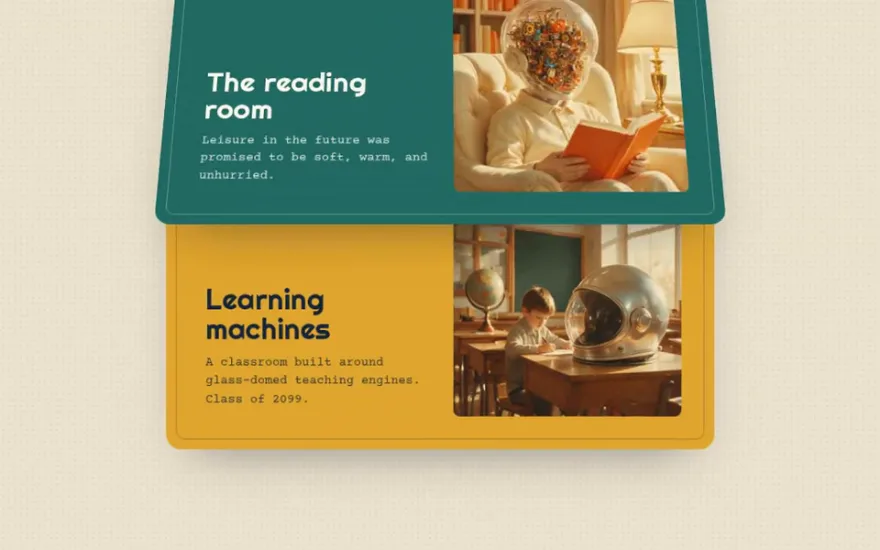
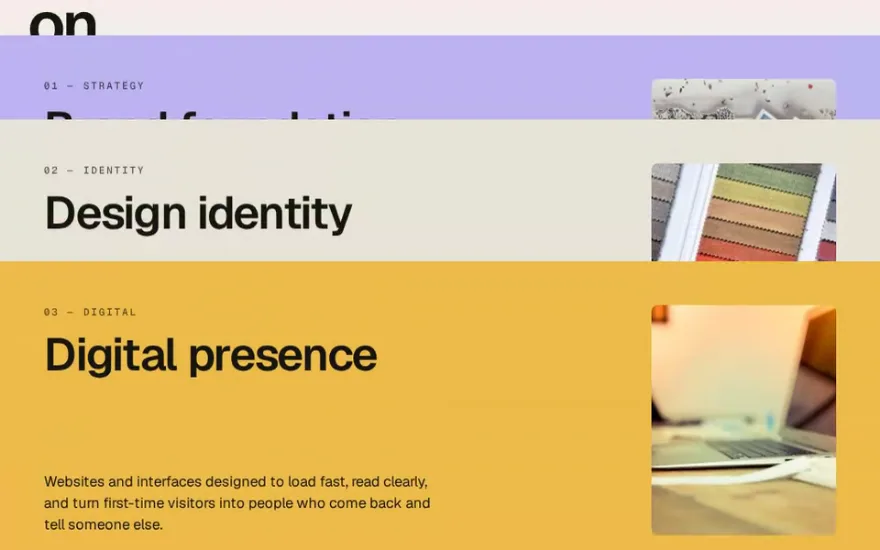
Free promptThe live example above, with a free prompt. Service cards pin a third of the way down the screen and each one slides under the next, with its content peeling upward as it goes.
Sticky stacking cards keep each card fixed in place while the next one scrolls up and covers it, so the section reads as a deck being dealt onto the table. The layout part can be pure CSS: every card gets position: sticky and the same top. GSAP and ScrollTrigger add what makes it feel physical, scaling, darkening or tilting the card underneath as it gets covered, driven directly by the scroll.
CSS sticky or ScrollTrigger pin. position: sticky is the lightest way to hold the cards: no JavaScript, no extra spacing, and the browser handles it on the compositor. It only works if no ancestor has overflow: hidden and the cards share one scrolling parent. ScrollTrigger's pin does the same job in JavaScript and works in more layouts, at the cost of wrapper elements and recalculations on resize.
What happens to the covered card. Something has to signal that a card is being buried, or the stack looks like cards overlapping by accident. Scaling it down slightly, from 1 to about 0.9, and dimming it is the common choice. A small rotation, a 3D tilt backward or a blur are the stronger variants.
Over what distance. The effect on a card should start when the next card begins to cover it and end when it is fully covered. Tie each card's animation to the card that comes after it, not to itself, and the timing stays right whatever the height of the cards.
Cards stack with CSS sticky; GSAP scales and dims each card while the following one slides over it.
.card {
  position: sticky;
  top: 10vh;
  height: 80vh;
  transform-origin: center top;
}
import gsap from "gsap";
import { ScrollTrigger } from "gsap/ScrollTrigger";
gsap.registerPlugin(ScrollTrigger);
const cards = gsap.utils.toArray(".card");
cards.forEach((card, i) => {
const next = cards[i + 1];
if (!next) return;
gsap.to(card, {
scale: 0.9,
filter: "brightness(0.6)",
ease: "none",
scrollTrigger: {
trigger: next,
start: "top bottom",
end: "top 10%",
scrub: true,
},
});
});The trigger of each tween is the next card: it starts when that card enters the bottom of the screen and ends when it reaches the same sticky position, at which point the covered card is fully hidden. ease: "none" keeps the scaling proportional to the scroll.
Sticky that does not stick. The most common bug is an ancestor with overflow: hidden, overflow: auto or overflow-x: hidden, often added to stop a horizontal scrollbar. Any of them turns that element into the scroll container and breaks sticky. Use overflow-x: clip on the page instead, which clips without creating a scroll container.
The last card. The last card has nothing covering it, so the section ends with it alone on screen and then the stack scrolls away. Add some space after it, or pin the whole stack for a moment, so the reader sees the full deck before moving on.
Mixing pin and sticky. Do not pin elements that are also sticky, and if you use ScrollTrigger pins, decide on pinSpacing. With pinned cards stacked over each other you usually want pinSpacing: false, otherwise each pin adds a viewport of empty space after it.
Mobile browsers. Units like vh change as the address bar shows and hides, which shifts the sticky position and can make cards jump. Use svh or dvh for the card height and the top offset, and test on a real phone.
Accessibility. The content of covered cards still exists in the page, so it is still read by screen readers in order, which is good. Make sure the cards are in a sensible reading order and that dimming does not leave text below contrast while it is still readable on screen.
transform and opacity are cheap. The brightness() filter in the example costs a little more because the card has to be repainted with the filter, and on long stacks of image cards a dark overlay with animated opacity is cheaper. Avoid animating box-shadow or border-radius on many cards at once.
Each one has a live demo and a validated AI prompt that rebuilds it in your project.
The live example above, with a free prompt. Service cards pin a third of the way down the screen and each one slides under the next, with its content peeling upward as it goes.
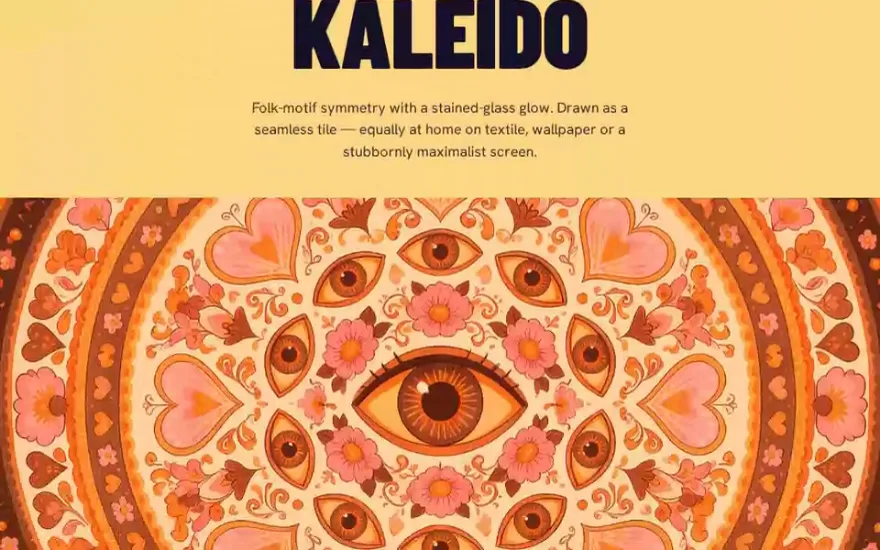
The classic version at full screen: each section holds while the next scrolls over it, and the image of the held section shrinks to half its size.
Cards fold away in 3D instead of shrinking: the outgoing panel tilts back and sinks while a dark overlay fades over it.
A deck rather than a stack: the front card flies up and tilts away, and the ones behind move forward to take its place.
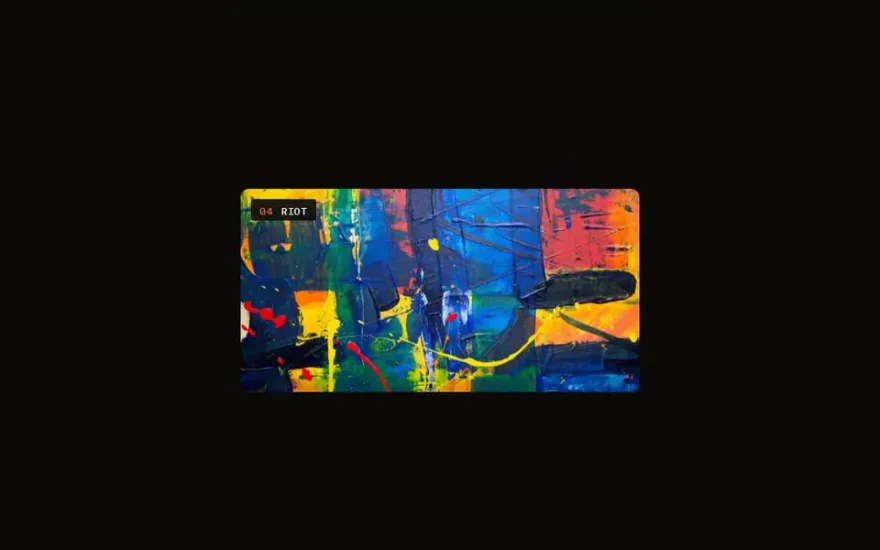
Image cards in a centred pile, where the front one scales down and rotates while the next slides up from below the frame.
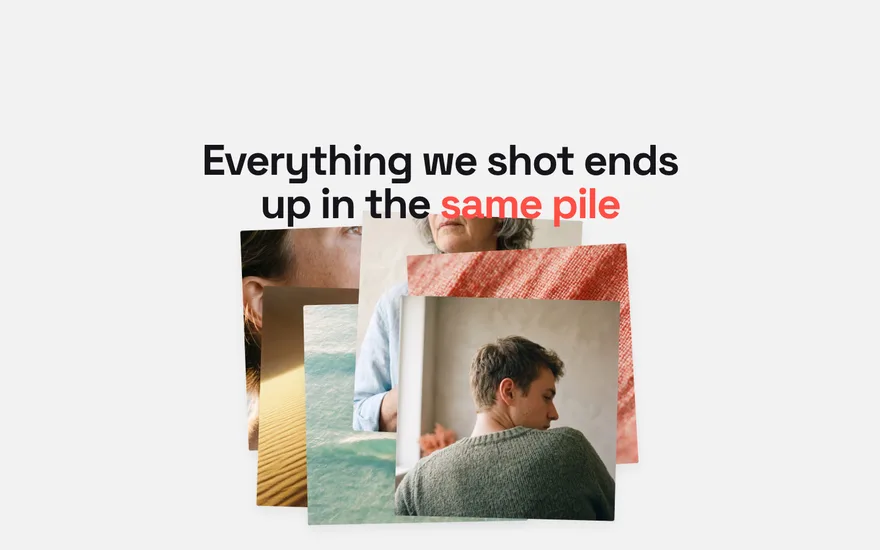
The stack is built rather than taken apart: scattered, rotated photos slide together into one pile as the reader scrolls.
The snippet above is the bare idea. Sticky Stacking Cards on Scroll is the finished, designed version, and its prompt is free: paste it into Claude Code, Cursor or any AI coding agent and it rebuilds the effect in your project with the exact structure, timing and easing.
Yes, for the stacking itself: position: sticky with the same top on every card produces the stack. You need JavaScript, or CSS scroll driven animations where supported, only for the scale or tilt on the covered cards.
Almost always because an ancestor has an overflow value other than visible or clip, or because the sticky element is the only child of a parent no taller than itself. Check every ancestor up to the body.
Sticky is simpler and runs without JavaScript. Pin is useful when the layout cannot satisfy the conditions of sticky, or when the pinned section must also run a timeline that depends on the pin, such as a horizontal scroll.
Give the stack a perspective and animate rotationX on the covered card together with a small move back on the Z axis, keeping transformOrigin at the top or bottom edge so it folds rather than spins.